DrVoIP
  • Amazon Connect
    • Get Started
      • Why Amazon Connect
      • Deployment & Quickstart
      • Fixed-Fee Packages
      • Migration from Legacy Systems
      • DIY Call Center Kit
    • Grow & Support
      • Managed Service & Support
      • CRM Integrations
      • Pricing
      • Case Studies
      • Chatbot Design
    • Real Deployment
      • 40+ agents, one AWS Connect instance
  • AI Solutions
    • Smart Answer
      • Why AI Solutions
      • Knowledge AI (RAG)
      • AI-Assisted Agents
      • AI Readiness Checklist
      • Chatbot Design
    • Smart Action
      • Agentic Automation
      • AI in Amazon Connect
      • AI Modernization Brief
      • AI Performance Checklist
    • Applied AI
      • AI that answers, or AI that acts?
      • AI Insights & Analytics
  • Cloud Services
    • Infrastructure & Security
      • Why Cloud Services
      • Network & Security Hardening
      • Cloud & Virtualization Migration
    • Custom Engineering
      • Phone System Support & Maintenance
      • Custom Application & Integration Development
      • Chat, Messaging & Web Meetings
    • Client Result
      • Cloud engineering under the hood
  • About
    • About Peter
    • Resources
    • Blog
    • Contact
  • Book a Strategy Call
  • Menu Menu

UCCX Cheat Sheet - Agent Log-in in using Extension Mobility!
Cisco & UCCX, Legacy Services, Technical Managers
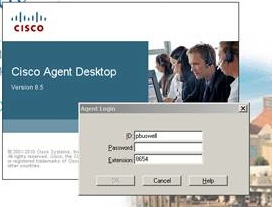
Cisco Agent Desktop login screen

There is a two step process for logging into the systems if you are a mobile worker.   The first step is to log into a Telephone and make the phone your Extension number.  The Second Step is to log into the CISCO Agent Desktop (i.e. CAD) and make yourself ³Ready² to receive calls from the Contact Center.

Step One:  - GoTo the phone you are logging into and press the button labeled ³services².  This will bring up a list of Services that your phone supports.  You should one or more services.  Select the Service entitled ³Extension Mobility² by highlighting it with up/down scroll button on phone or entering the menu number.
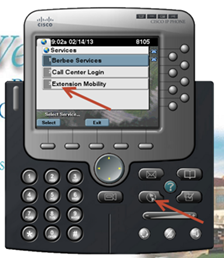

Cisco telephone agent services

Cisco Agent Desktop login screen

Step Two:  You will be prompted to enter your User Name and PIN.   The User Name is your Active Directory (i.e. AD) login name, usually in the form of First Letter of your First Name followed by your Last Name.  For Example, pbuswell.    You will have to use the Touch Tone Pad on the phone to enter your name, and it is a bit cumbersome, but you will figure it out.    The PIN number, unless you have changed it, will be the default of 12345678

The Phone should  wink and blink¹ and reset itself.  When it comes back alive, you should see your Extension number in the Display of the Phone. This means you have successfully logged into the phone on this desk!  Please remember to reverse the process and LOG OUT when you are done.

Step Three:  Log into the CAD, by bringing that software up on your associated computer.   This will be a Short Cut on your desktop, or you will find it with your mouse under the Start, All Programs, CISCO, Desktop, Agent.   You will then be presented with a screen that prompts for your User Name, Extension and Password.    Enter your AD user name as used in the above step.  The Extension is to match the Extension on your phone, and the Password is your AD password.

This should log you into the Contact Center and bring up your Agent Tool bar similar to the one below, though your buttons may be smaller.  To indicate that you are READY to receive calls, you will need to push the READY icon (mouse over ICON) to see what they do!   When you do not want to receive calls, you will push the NOT READY icon.  At the top of the tool bar you will note your current Status!
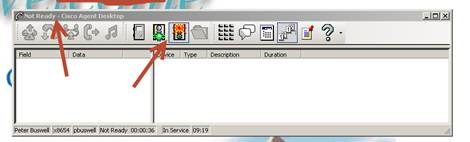
Cisco UCCX agent ready toolbar


March 5, 2014/by Peter
Tags: Active Directory, Agent Desktop, Agent Login, Cisco UCCX, Extension Mobility
https://drvoip.com/wp-content/uploads/2014/03/cisco-agent-desktop-login-screen-786.webp 207 272 Peter /wp-content/uploads/2026/10/drvoip-logo-18.webp Peter2014-03-05 12:52:272026-10-05 12:19:01UCCX Cheat Sheet - Agent Log-in in using Extension Mobility!
You might also like
Cisco extension mobility telephone interface Compare ShoreTel and CISCO - Extension Mobility Options!
Multilingual contact center scripting editor Holiday Check script is a great learning tool!
Helpful tips sticky note Configure Amazon Connnect for SSO using Microsoft Azure
WebRTC conference interface WebRTC "peer to peer" Call Center Demo!
Mobile messaging notification illustration TEXT-2-AGENT Sending text and pictures to your call center?
Reporting chart illustration Dextr has a new Agent Performance Widget!
Holiday calendar illustration Amazon Connect replaces ShoreTel Workgroups with the Dextr Dashboard!
Reporting chart illustration UCCX Scripting - "Get Statistics" and manage your call flow dynamically!
DrVoIP logo

Building cloud communications and contact center solutions since 2008.

DrVoIP on YouTube
Peter Buswell on LinkedIn

Services

Amazon Connect
AI Solutions
Cloud Services
Case Studies

Company

About Peter
Resources
Blog
Contact

Talk to us

844-4DrVoIP
grace@drvoip.com

© 2026 DrVoIP. All rights reserved.

FAQsCookies PolicyPrivacy PolicyTerms of Use
Link to: Repurpose your CISCO 7900 phones as ShoreTel sip Extensions! Link to: Repurpose your CISCO 7900 phones as ShoreTel sip Extensions! Repurpose your CISCO 7900 phones as ShoreTel sip Extensions!Cisco 7940 IP telephone Link to: Slamming it with ShoreTel Call Manager desktop deployment option! Link to: Slamming it with ShoreTel Call Manager desktop deployment option! PDQ Deploy logoSlamming it with ShoreTel Call Manager desktop deployment option!
Scroll to top Scroll to top Scroll to top

This site uses cookies. By continuing to browse the site, you are agreeing to our use of cookies.

Accept settingsHide notification onlySettings

Cookie and Privacy Settings


How we use cookies

We may request cookies to be set on your device. We use cookies to let us know when you visit our websites, how you interact with us, to enrich your user experience, and to customize your relationship with our website.

Click on the different category headings to find out more. You can also change some of your preferences. Note that blocking some types of cookies may impact your experience on our websites and the services we are able to offer.

Essential Website Cookies

These cookies are strictly necessary to provide you with services available through our website and to use some of its features.

Because these cookies are strictly necessary to deliver the website, refusing them will have impact how our site functions. You always can block or delete cookies by changing your browser settings and force blocking all cookies on this website. But this will always prompt you to accept/refuse cookies when revisiting our site.

We fully respect if you want to refuse cookies but to avoid asking you again and again kindly allow us to store a cookie for that. You are free to opt out any time or opt in for other cookies to get a better experience. If you refuse cookies we will remove all set cookies in our domain.

We provide you with a list of stored cookies on your computer in our domain so you can check what we stored. Due to security reasons we are not able to show or modify cookies from other domains. You can check these in your browser security settings.

Other external services

We also use different external services like Google Webfonts, Google Maps, and external Video providers. Since these providers may collect personal data like your IP address we allow you to block them here. Please be aware that this might heavily reduce the functionality and appearance of our site. Changes will take effect once you reload the page.

Google Webfont Settings:

Google Map Settings:

Google reCaptcha Settings:

Vimeo and Youtube video embeds:

Privacy Policy

You can read about our cookies and privacy settings in detail on our Privacy Policy Page.

Privacy Policy
Accept settingsHide notification only